)
)
)
OhhWells Can Now Build Sections From a Sentence, a Screenshot, or a Link
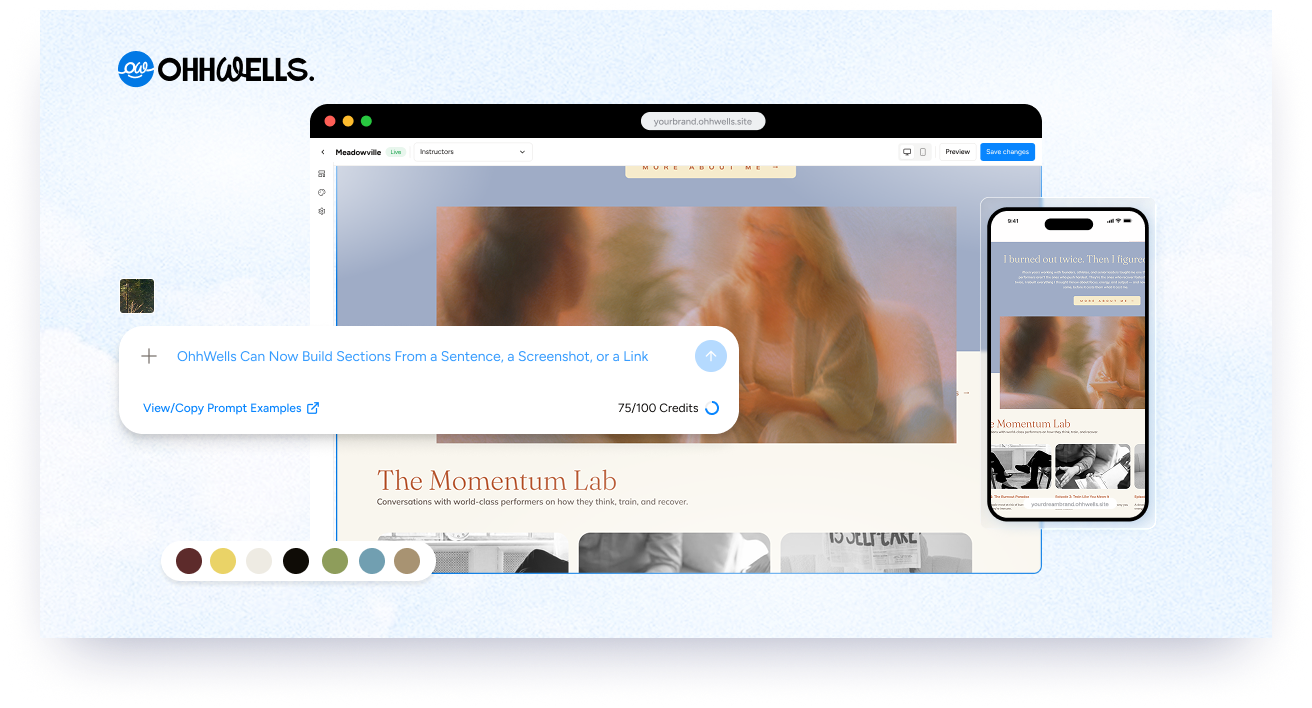
Your site should not be stuck as whatever the template made it. You picked a starting point, not a ceiling — and everything we've built this year has been aimed at giving you full creative control over what happens after that.
That's meant making the canvas editable end to end.
But editing what's already on the page only gets you so far. Real creative freedom means being able to add what isn't there yet, in your own words, without touching code or waiting on a designer.
Today we're announcing AI section building in the Canvas editor. Select a section and describe what you want changed. Ask for a section that doesn't exist yet. Or show it what you're after — a screenshot, or a link to a page you like.
AI section building is available on every plan, on every site — new and existing. If you don't see it yet, simply click “+ New Website” from any template in your dashboard is the fastest way to try it right away.
Point at a section. Say what you want.
The prompt bar sits at the bottom of the Canvas editor from the moment you open it. Hover it and three suggested prompts appear — click one, edit it, hit enter.
The section is the unit of editing
Click anywhere inside a section and it's selected — blue border, and the section's name appears as a chip above the prompt bar. Your prompt only touches that section. Click an editable element inside it and you additionally pinpoint that element. Clear the selection with the chip's ✕, the Esc key, or by clicking outside any section.
A section being clicked in the Canvas editor, showing the blue selection border and the section name appearing above the prompt bar
Nothing applies until you accept it
After a section-scoped run, the changed section gets a highlighted border with Accept and Discard buttons appearing at the top right of the screen.. Accept keeps it. Discard restores the section exactly as it was before the run. While you decide, that section stays locked and the rest of the page stays interactive — you're never forced to choose immediately.
No selection means the whole page
Prompt without selecting anything and it runs against the full page, with the scope pill reading "Editing: Whole page". Whole-page runs are slower, so results stream in progressively with a progress indicator, and they use the apply-then-undo model rather than accept/discard.
Works the same on every template
Section naming and division were standardised across every vibe-coded template, so selecting a section behaves identically no matter which template your site came from.
Ask for a section that doesn't exist yet
Editing what's already on the page was the first half. This is the second.
Describe a layout, get a section
Ask for something you don't have — a testimonials row, a three-column services grid, a pricing comparison — and OhhWells composes it and inserts it into the page. The result renders using your site's brand kit: your fonts, your colours, no hardcoded styling. A new section looks like it belongs because it's built from the same tokens as everything around it.
Show it a screenshot
Attach an image of a section you like and the layout is derived from it, through the same pipeline and the same validation. Images it can't work with return a friendly error rather than a bad guess.
Or paste a link
Seen a section you like on someone else's site? Paste the URL. We fetch the page, analyse the layout, and build a section from it — through the same validation as everything else, styled in your brand rather than theirs. Links we can't reach or read return a friendly error instead of a bad guess.
A screenshot being uploaded and a URL being pasted into the prompt bar, each producing a matching section in the site's own brand
Generated sections are just sections
Once inserted, a generated section behaves like any other: its text and images are click-to-edit, and you can prompt it again. There's no separate "AI section" mode to manage.
Replacing asks first, inserting doesn't
Adding a fresh section applies straight away. Replacing an existing section's structure asks for confirmation before it touches anything. Undo removes the generated section, or restores the structure and content that was replaced.
Built so it can't wreck your site
This is the part we spent the most time on, and the part worth explaining.
The AI has a fixed vocabulary
Section generation composes from a defined block library — a closed list of block types, each with documented content slots, span constraints, and valid children. Nothing outside that list renders. This is a deliberate constraint: it's what makes generated sections consistent and on-brand rather than a grab bag of one-off markup.
Every output is validated before it's applied
Generated layouts must pass validation on block types, span sums, nesting depth, and parent/child pairings. Unknown fields anywhere cause rejection, and every rejection is logged with a reason. Invalid output is never silently patched into something almost-right — it's rejected, retried once, and then surfaced as an error with nothing applied.
The AI can't write code
Animation exists as preset-only properties — effect, trigger, duration, stagger, all from closed lists. The model cannot emit keyframes or scripts. There is no path from a prompt to arbitrary code on your site.
Destructive prompts stop and ask
Prompts that would remove more than half a section's content trigger a confirmation step. Locked elements — your booking widget's configuration, for instance — are never modified by a prompt, regardless of what you ask for.
Nothing about your existing site changed. Your pages, content, and structure are exactly as you left them. This adds a way to change them; it doesn't change them.
What it doesn't do yet
Worth being straight about, because it'll save you a frustrating prompt or two:
- It composes from the block library, not from scratch. Standard layout patterns work well. Something genuinely bespoke will come back as the closest available match, not as a custom component.
- It can't write animations or scripts. By design, not by limitation — but if you're expecting bespoke motion, that's not this.
- Sites on an older version degrade gracefully. Selection falls back to the previous click-an-element behaviour rather than breaking.
Try it
AI section building is live in the Canvas editor now. Open a site, click a section, and tell it what you want.